Showing posts with label Wavelink. Show all posts

Tuesday, 21 October 2008

Notes on configuring the MC9090G terminals

Notes on configuring the Motorola (Symbol) MC9090G terminals

1)  Install ActiveSync 4.1 on your PC. (only necessary on first use)

2)  Install the Wavelink TE Application on your PC. (only necessary on first use) 

3)  Connect CRD9000 single bay cradle to PC using USB cable, the power supply is not strictly necessary unless charging required. 

4)  Switch on MC9090G and ensure it's at the Windows desktop with no applications running.

5)  Place MC9090G into cradle, it will beep and you will see a PC screen asking type of connection, choose "No" and press “Next” button.
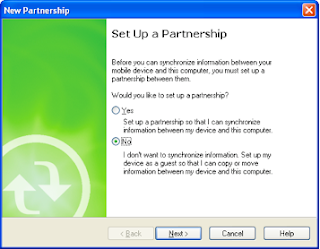


6)  On ActiveSync window there will be a button "explore"... choose this. 


7)  A Window will open showing the file system of the hand held terminal. 

8)  Double tap the Applications folder within this window.

9)  Copy ALL the files in the "Hand Held RF Terminals - files to copy to Applications folder" folder on the PC to the "Applications" folder you just opened on the MC9090G. Overwrite if prompted, and if asked to convert from PC format to Windows Mobile format, say "Yes". Now close the window showing the files in “Applications” on the hand held terminal. 

10) Run Wavelink TE application on PC .... shortcut will now (after the install) be on PC desktop. The one illustrated below is the same , however the text below the icon will read “Wavelink MC9000 Telnet CE”


11) Import desired configuration file from "Wavelink TE configs" folder on PC by choosing the Import/Export Settings button on the window as here…


Select the file from your PC that you were issued with when you initially configured the MC9090G. Then press “Open”


12) Make sure that your terminal isn’t running the TE application. It should be at the AppCenter desktop. If it is running TE then quit by pressing BLUE, then CTRL, and A keys, select Yes button (password is QUIT).

13) Press "Config Only" button on Wavelink screen.


14) Select OK when done.

15) Reboot terminal by removing battery, hold power and trigger, then release and replace the battery.

Friday, 8 December 2006

Some remap codes for MC9000 terminals, with Wavelink TE

9800:\4900
A000:\5100

This makes

Shift FUNC 6 = CTRL UPARROW
Shift FUNC 7 = CTRL DOWNARROW

And therefore they mimic the older Wavelink terminals.

The program exit key is 0029 which is ALT A

Saturday, 2 December 2006

Roll up and Roll Down on TN5250 Wavelink TE (Symbol 90XX)

These are not as in the manual, they are [SHIFT] [FUNC] 6 and [SHIFT] [FUNC] 7 and should ideally be remapped to better keys using the remap function.

Saturday, 24 June 2006

Windows CE 5.0 and RF regulatory issues

The issue with the RF profile not working sometimes, might be down to the incorrect "regulatory" information being set on the terminal.

If you tap the signal strength icon in the bottom right of the display you get a menu.

Select Options and you'll get a dialogue box.

Select from the drop down "Regulatory".

Ensure country is set to UK and the "Enable 802.11d" check box is NOT selected.

Then SAVE and exit this.

*** However this is NOT saved in flash memory and is lost when the device cold boots. The fix for this is as follows ...

After performing the above, repeat it with differences as follows ...

Tap the signal strength icon in the bottom right of the display you get menu.

Select Options and you'll get a dialogue box.

Select from the drop down "Export".

Then press "Export Options" button

Then select "OK" (do not change default names or folders, just say OK)

Now, and in conjunction with RegSave, *ALL* options of the 9090 are saved to persist through a Cold Boot.


Then back in the original menu ...

Select "Manage Profiles"

Choose the desired profile.

Hold the stylus on the profile text for a second or so, when the menu appears, select "Connect"

Now exit the profile manager menu back to the main desktop and double tap the "Wavelink TE" icon.