Showing posts with label Symbol. Show all posts

Tuesday, 21 October 2008

Notes on configuring the MC9090G terminals

Notes on configuring the Motorola (Symbol) MC9090G terminals

1)  Install ActiveSync 4.1 on your PC. (only necessary on first use)

2)  Install the Wavelink TE Application on your PC. (only necessary on first use) 

3)  Connect CRD9000 single bay cradle to PC using USB cable, the power supply is not strictly necessary unless charging required. 

4)  Switch on MC9090G and ensure it's at the Windows desktop with no applications running.

5)  Place MC9090G into cradle, it will beep and you will see a PC screen asking type of connection, choose "No" and press “Next” button.
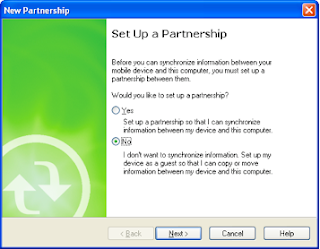


6)  On ActiveSync window there will be a button "explore"... choose this. 


7)  A Window will open showing the file system of the hand held terminal. 

8)  Double tap the Applications folder within this window.

9)  Copy ALL the files in the "Hand Held RF Terminals - files to copy to Applications folder" folder on the PC to the "Applications" folder you just opened on the MC9090G. Overwrite if prompted, and if asked to convert from PC format to Windows Mobile format, say "Yes". Now close the window showing the files in “Applications” on the hand held terminal. 

10) Run Wavelink TE application on PC .... shortcut will now (after the install) be on PC desktop. The one illustrated below is the same , however the text below the icon will read “Wavelink MC9000 Telnet CE”


11) Import desired configuration file from "Wavelink TE configs" folder on PC by choosing the Import/Export Settings button on the window as here…


Select the file from your PC that you were issued with when you initially configured the MC9090G. Then press “Open”


12) Make sure that your terminal isn’t running the TE application. It should be at the AppCenter desktop. If it is running TE then quit by pressing BLUE, then CTRL, and A keys, select Yes button (password is QUIT).

13) Press "Config Only" button on Wavelink screen.


14) Select OK when done.

15) Reboot terminal by removing battery, hold power and trigger, then release and replace the battery.

Wednesday, 16 May 2007

Loading Operating System onto a Symbol MC9090

Install the file "9090c50BenDC010402.exe" on your PC/Laptop.

Ensure ActiveSync is NOT running.

Connect a powered cradle to the laptop using either a serial cable or USB cable.

Start the MC9090G in IPL mode, by

Partially eject the battery

Press and hold the trigger and the power button while reinserting the battery until the MC9090 boots into IPL mode

Release the power button but continue to hold the trigger

Insert the MC9090 into the cradle then release the trigger

If you are using USB you will be prompted by the PC/laptop for a driver, point it at

C:\program files\symbol\tcm2\usb driver

On the PC/laptop

Click on "Start", "Programs", "Symbol device configuration packages", "MC9090c50 v1.4" and "TCM"

Click on the "load terminal" icon on the menu bar, you now need to download the hex files to the terminal one by one.

Browse to the "Hex Images" folder where the DCP is installed. You need to download the partition table file FIRST and the splash screen LAST, see the release notes if you are unsure which file is which.

After each file is installed you will need to reboot the terminal into IPL mode

Tuesday, 12 December 2006

Citrix ICA client - notes for MC9090G install

Trying to start the ICA client, the internet explorer opens at address http:\localhost and shows the following text:

>>>>>>>
The Windows CE Web Server is enabled on this device.

This file is a placeholder and should be replaced. Please see your Platform Builder docs or our web site at http://msdn.microsoft.com/library/default.asp?url=/library/en-us/wceinet/htm/webserv.asp.

More information on the Windows CE is available at http://www.microsoft.com/windows/embedded/ce.
<<<<<<<

What can I do to get to the main menu?


The solution is to disable the Windows CE Web Server.

In Win CE 4.1 You have to open a command prompt and then use services.exe to stop the service:

\> services stop htp0:

Where : is Shift Func R

Now the ICA client will start.

Friday, 8 December 2006

Some remap codes for MC9000 terminals, with Wavelink TE

9800:\4900
A000:\5100

This makes

Shift FUNC 6 = CTRL UPARROW
Shift FUNC 7 = CTRL DOWNARROW

And therefore they mimic the older Wavelink terminals.

The program exit key is 0029 which is ALT A

Saturday, 2 December 2006

Roll up and Roll Down on TN5250 Wavelink TE (Symbol 90XX)

These are not as in the manual, they are [SHIFT] [FUNC] 6 and [SHIFT] [FUNC] 7 and should ideally be remapped to better keys using the remap function.

Sunday, 22 October 2006

Disabling the Touch Screen on Symbol VC5090 FLT Terminals

You can disable the touch screen a couple of ways:

Firstly you can use the user programeable keys (see Prduct Ref Guide) where you can assign a function to the P1/P2 keys. One function available is disable the touch screen.

Secondly you can disable via the registry. To do this you need to create a reg key that sets the power state of the touchscreen to off.
Best way to find the key you need to alter is do a dump of the registry (using regsave tool or symscript) and look for the device driver TCH1.
In this key you should see a power state option...if you set power state to 4 it will switch the touch screen off. Create the key in notepad and save with a .reg extension. Place in the application directory and the setting will merge every cold boot.....please note you will then need to disable the calibration in Welcome.exe otherwise you will never be able to get past that window.

Cold Boot issue on Symbol VC5090 FLT Terminals


You can manually change the power setting to stop this behavior. The best thing to do would be to create a .reg file out of the following keys....

[HKEY_CURRENT_USER\CONTROLPANEL\DEVICES\CDL1:]
"TIMEOUTWAKEUPFLAG" = DWORD:00000000
"POWERKEYWAKEUPFLAG" = DWORD:00000000
[HKEY_CURRENT_USER\CONTROLPANEL\DEVICES\CDL2:]
"TIMEOUTWAKEUPFLAG" = DWORD:00000000
"APIWAKEUPFLAG" = DWORD:00000000
"POWERKEYWAKEUPFLAG" = DWORD:00000000

...and then copy that reg file onto a terminals \Application directory.
Then make the terminal cold boot, which will merge these reg keys and the terminal should be set so that if you suspend using the power button, remove power and then replace power, press the power button again the terminal should resume where it left off.

Friday, 29 September 2006

Sorting out Motorola VC5090 terminals


There are several scenarios that can happen with the VC5090 terminal. I'll try to describe each one and the remedy...

(1) The terminal re-boots and displays the "crosshairs"
(A) You must align the touch screen using the crosshairs, if you don't perform this the screen won't know where your stylus is and you won't be able to use the touch screen.
Tap the screen with something pointed but not damaging at the point where the crosshairs are located. You have to do this five times, and , at the end you will be prompted to tap the screen anywhere in confirmation.
At this point a box will appear on the left of the screen with some icons in, double tap the EXIT icon, then on the desktop, double tap the Telnet CE icon.

(2) When I tap an icon, nothing happens.
(A) The likelihood is that the screen has lost it's calibration and doesn't know where you are tapping. While you think your tapping over the right icon, the terminal thinks your tapping elsewhere.
You need to get to the crosshairs screen as per (1) above. There are two ways to do this.
The fastest way is to press the P1 P3 and POWER keys and hold for a few seconds, release the power key first, followed by the other two.
This should "cold boot" the terminal and after a minute you'll get to the crosshairs, proceed as per (1) above.
OTHERWISE.... Press the CTRL and ESC keys together to pop-up the start menu. Use the up, down and right arrows to get to the "Settings", "Control Panel". Then use the arrow keys to navigate to the icon called "Stylus", then press ENTER.

Now press the TAB key once, the RIGHT arrow once, the TAB key again and ENTER... This will end up at the crosshairs screen. Proceed as (1) until you have confirmed your calibration, then you can tap the X in the top right corner of each window to return to the desktop and then find and double tap the TelnetCE icon.


(3) The terminal is locked in some way, or behaves erratically.
(A) Press the POWER and P2 keys, then release POWER followed by P2 to warm boot the terminal.

Thursday, 27 October 2005

RegSave on Symbol 90X0 terminals, specifically the 9060 with the 802.11b RF option


Some brief notes about the use of RegSave on Symbol 90X0 terminals, specifically the 9060 with the 802.11b RF option.

You will need RegSave_2_53_04.zip

Unzip this and locate the file RegSaveCED.exe in the 9050 folder.

Connect your terminal as a guest in ActiveSync and explore it using Win Explorer. Locate the c:\applications folder and copy the RegSaveCED.exe file to this folder on the HHT.

Now you can uncouple the HHT and click start menu and Windows Explorer to look at HHT's local files. locate applications folder and locate the RegSaveCED.exe file... double tap

Now screen RegSave EMEA TS appears.

In Registry section press "Create Template File"
Accept \Application\RegSave.tpl option offered
Click Create template and wait forever !

............. time passes ..................

The app rattles through all the registry entries and builds a file with them all in. Just when you assume it'll last forever it stops...

Now back to the main screen ...

Click OK (top right) to exit the app

--- oOo ---

Now set your IP parameters and RF bits... in fact anything you need.

........... time passes ...........

--- oOo ---

Now re-load the RegSave app.

Press the button in the Registry section entitled "Save Current Configuration"

I got some missing file error here which I rode over roughshod... basically it's looking for a registry exception file. You can create this but and it can be a list of ignored keys but for our purposes it doesn't matter so I just said "Yes"

It'll do some stuff regarding comparing and checking for differences, then it saves the changed bits.


Now you can exit RegSave and try rebooting... it should have saved the changes to the Registry and everything should be the same as before.